12:12:51 28/5/2025 - 0 views
How to Use Google Ad Manager to Display AdSense Ads
If you're a website owner or developer using Google Ad Manager (GAM) to serve AdSense ads, it's crucial to configure everything properly — especially the Ad Units Delivery settings and . In this guide, I’ll walk you through the correct way to set up AdSense ads using GAM and highlight a common oversight that could result in your account being flagged by Google.
🎯 Why Use Google Ad Manager for AdSense?
Google Ad Manager is a powerful ad serving platform that gives you more control over your ad inventory. You can use it to:
Manage multiple ad sources (AdSense, direct ads, programmatic, etc.)
Control ad frequency and targeting
Refresh ads based on triggers
When integrated correctly, AdSense works seamlessly with GAM — but you must follow proper setup procedures.
✅ Step-by-Step: Displaying AdSense Ads via Google Ad Manager
1. Set Up Ad Units under Inventory > Ad Units
This is where you define the actual ad slots on your site.
Go to Inventory > Ad Units in your GAM dashboard.
Click New ad unit.
Fill in the required details:
Name (e.g.,
homepage_top_banner)Ad size (e.g.,
728x90 300x250, )Target window: Choose
_blankEnable AdSense check the box: Be sure to that says “Maximize revenue of unsold inventory with AdSense.”
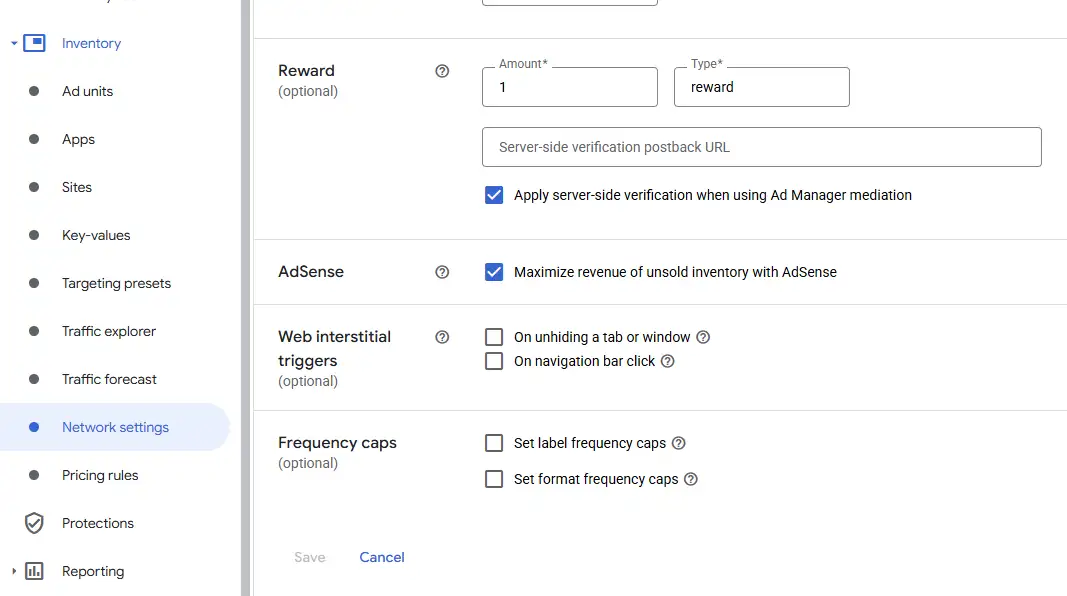
💡 Tip: Each ad unit will generate an ad tag (JavaScript code) to place on your website. Use this to display the ad.
2. Don’t Forget: Set Up Orders and Line Items
(Delivery > Orders & Line Items)
This is the part many publishers overlook — and the one that cost me a Google account warning!
Even if your AdSense ads are showing directly through Ad Manager Orders and Line Items inactive, if you don't set up , Google may consider your GAM account .
Here’s how to fix it:
Go to Delivery > Orders: Create your order
After creating the order, you create a Line Item inside the order:
Type: House
Expected creatives: Choose the sizes of your ads
Delivery settings: set End time is Unlimited
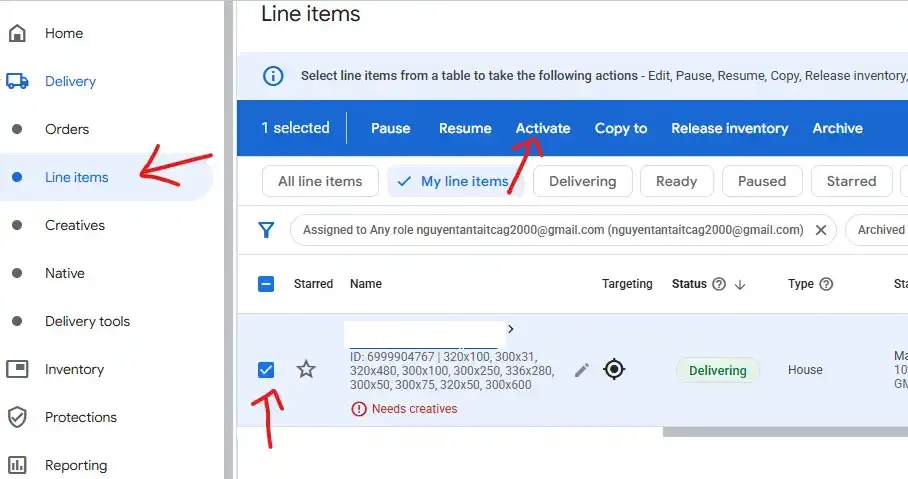
After creating the Creatives: You must specify a creative at least 1 size you created before; if not, you can't activate the Line Item
Create the Creatives at Delivery > Creatives
After you've done all steps above, go to Delivery > Line Item to activate it (when you activate from the status Paused Ready, it will transform to , after a few days, it will transform to Delivering)
⚠️ What Happens If You Skip This?
I made this mistake myself: I created ad units and embedded them on my site, and the ads were displaying fine. But I forgot to set up Orders and Line Items.
After about 90 days, I received an alert from Google saying:
"Your Ad Manager account appears inactive. It may be disabled if no active traffic is recorded."
Even though the ads were showing, GAM didn’t record them as valid activity because no line items were configured to serve them. Google sees this as a misconfiguration and may flag your account.
🛡️ How to Avoid Account Deactivation
Always configure Inventory > Ad Units first
Immediately create Orders Line Items for a least ad unit
Periodically log in to check GAM reports and confirm impressions are tracked
Keep your ad units linked to valid line items — this is how Google knows you're actively using Ad Manager
🔄 Bonus: Can You Use Ad Refresh?
Yes, with GAM, you can configure ad refreshes based on user activity or time intervals. Just make sure you follow Google’s policies (e.g., do not refresh ads automatically every few seconds without user interaction unless explicitly allowed).
Final Thoughts
Setting up AdSense ads through Google Ad Manager isn’t difficult — but missing one small step can lead to big issues, like potential account deactivation.
By properly configuring:
Inventory > Ad Units
Delivery > Orders and Line Items